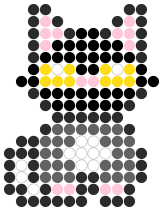
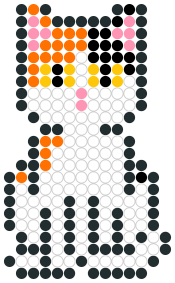
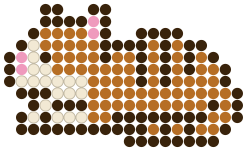
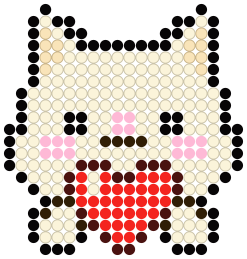
Turn a photo into a printable bead chart with exact bead counts. Free, no sign-up, and your photo stays in your browser.
Bead colors
Preview
Upload an image to start
Your pattern will appear here.
How to Turn a Photo into a Bead Pattern
Upload a photo. Drag in a JPG, PNG or WebP image, or tap to choose one. Drag on the preview to crop it to the part you want.
Choose a size. Pick “1 board” for a design that fits one 29×29 square pegboard, or “2×2 boards” for something bigger. You can also type your own width in beads.
Pick your beads. Choose Perler, Hama or Artkal. The maker matches each color to the closest solid bead in that brand’s color list.
Set a color limit. Fewer colors give cleaner shapes. Most photos look best with 6 to 12.
Fix any stray beads. Use the pencil, fill and color-picker tools to tidy up. Undo is always one click away.
Print or play. Download a PDF that prints at actual size, save a PNG, or press Play to build it bead by bead on screen.
Tips for Better Results
Start with a simple photo. One subject, a plain background and good light convert far better than a busy scene. Pets and portraits work best facing the camera.
Smaller is often clearer. At 29 beads wide, a face has room for eyes and a nose but not eyelashes. If details turn to noise, lower the size or the color limit rather than raising both.
Remove the background first. Keep “Remove background” on so you don’t spend hundreds of beads on a plain wall.
Already have pixel art? With “Detect pixel art” on, the maker finds the pixel grid and keeps one bead per pixel instead of resampling it.
What You Get
A chart that prints at true size, with a 50 mm line to check the scale
A bead list with the count for every color and the brand’s color codes
A PNG to share, and a link that reopens the exact pattern
A play mode to build the design on screen before you buy beads
Questions
Is this bead pattern maker free?
Yes. Making, editing, printing and downloading are all free, with no account and no watermark. The conversion runs in your browser, so there is no upload wait or daily limit, and you can make as many versions of a photo as you like.
Does my photo get uploaded?
No. The conversion runs in your browser, and the image is never sent to our server. Closing the tab clears it. A shared pattern link carries only the finished bead grid, never your photo.
Which bead brands are supported?
Perler, Hama and Artkal standard beads. Switching brands rematches every color to the closest solid bead in that brand’s color list, and the bead counts update with it. Matches are by measured color, so compare them with your real beads.
What size should my pattern be?
For keychains and magnets, 15 to 20 beads wide is plenty. For a recognizable face or pet, use 29 beads, which is one 29×29 square pegboard. For detailed portraits, use 2×2 boards or more.
Can I edit a pattern from your library?
Yes. Every pattern in the library has an “Edit in maker” button. It opens that chart here, so you can change colors or add details, then print your version. Your edits don’t change the library pattern, and Share link gives you a link to your own version.
Why does my pattern look speckled?
Usually the color limit is too high for the size. Fine shading in a photo becomes scattered single beads. Lower the color limit, or turn on “Smooth stray beads” so lone beads take the color around them.